
Share Your Jira and the Issue Viewer have merged into a single App. This means all features of the Issue Viewer are now available in Share Your Jira.
Installing Share Your JIRA
-
Log in as a user with the JIRA administrators global permission
-
Open the JIRA Administration (gear icon) and choose "Add-ons"
-
Click "Find new add-ons" from the side navigation
-
Type "Share Your JIRA" in the search bar (The correct version appears in the search results)
-
Click "Try free" to begin the trial or "Buy now" to purchase a license for Share Your JIRA.
-
Enter your data and click "Generate license"
-
Click "Apply license"
Or Install the plugin with Universal Plugin Manager.
Permission
The permissions of the function is defined at every single project.
Every project administrator has the right to define the user groups, that can create shares, in his project.
Initial Setup
|
Instruction |
Screenshot |
|---|---|
|
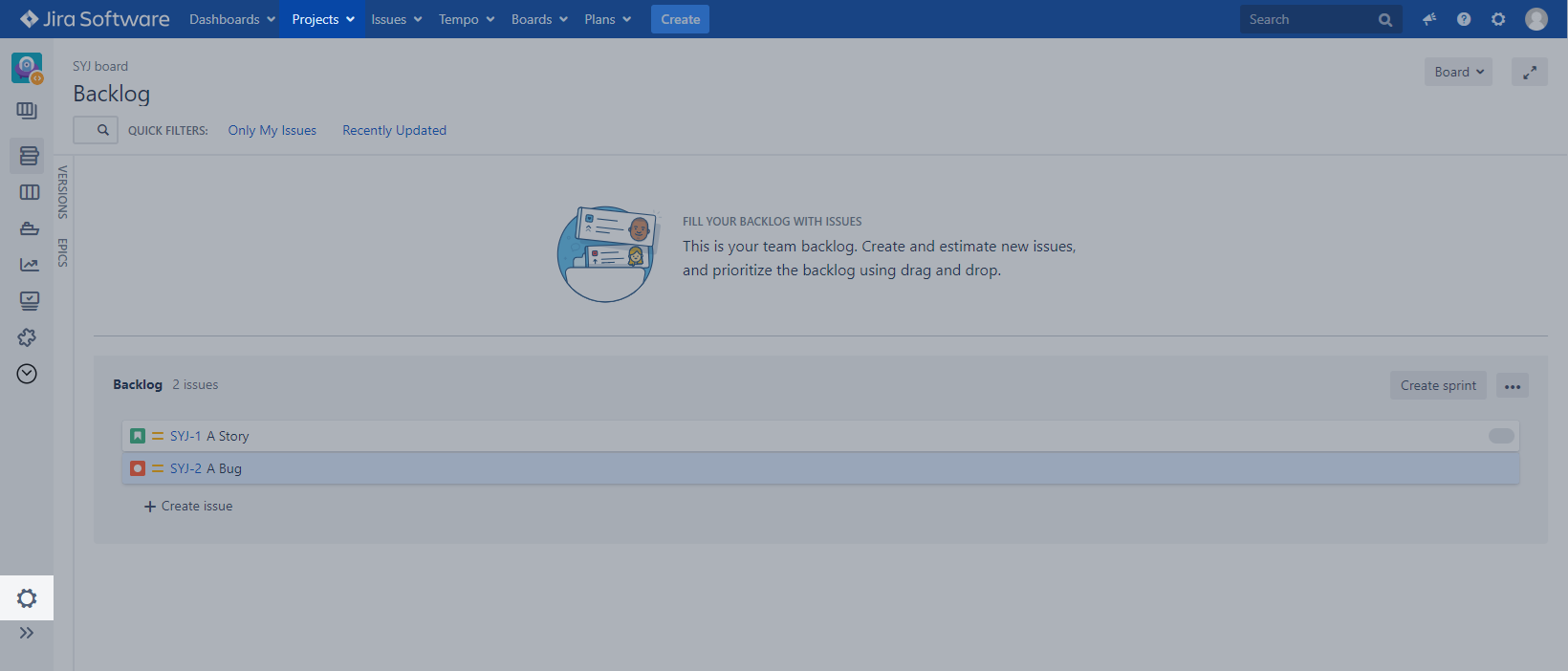
Open the project |
|
|
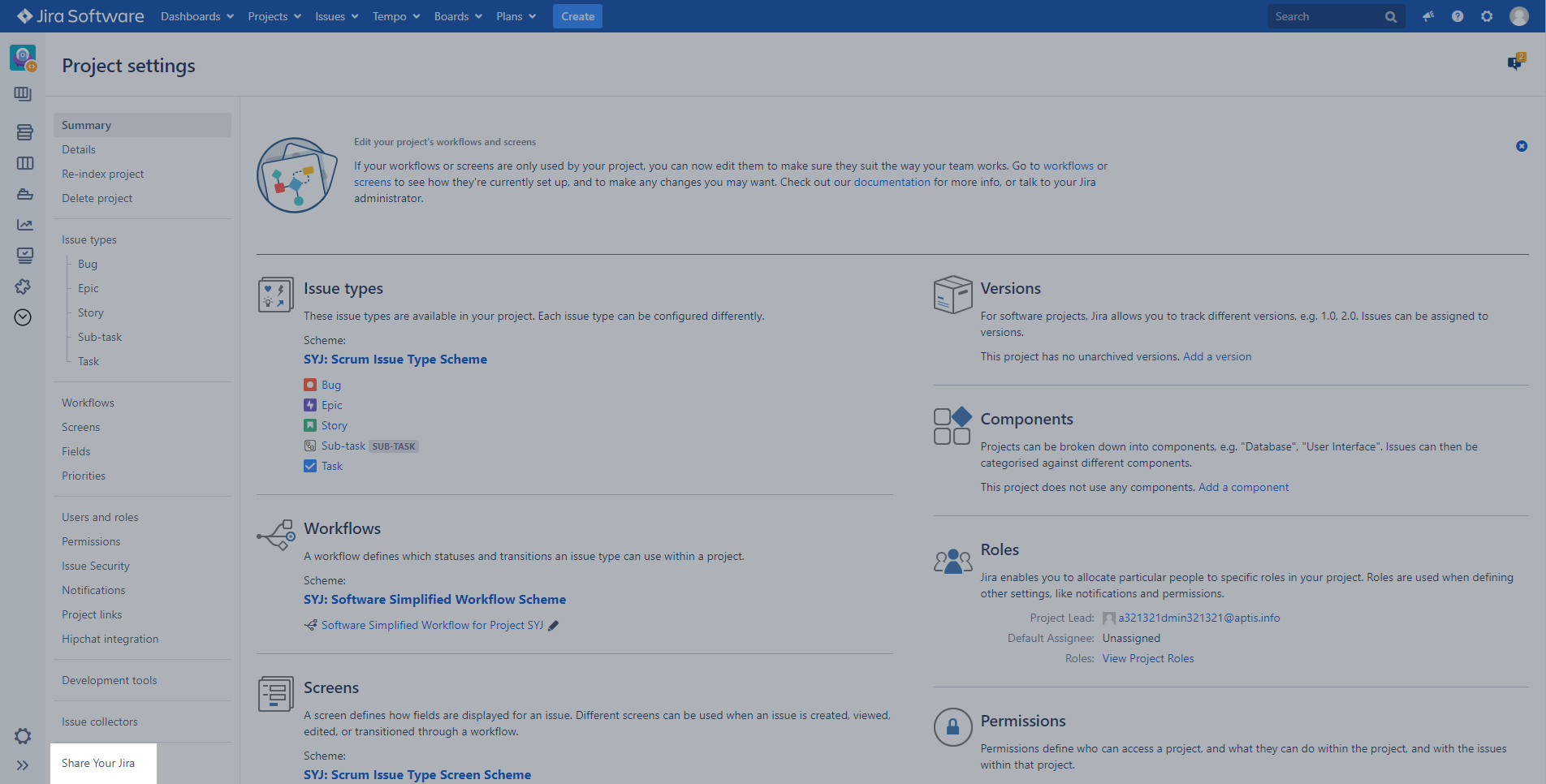
Click on "Project administration" |
|
|
Click on "Share your Jira" |
|
|
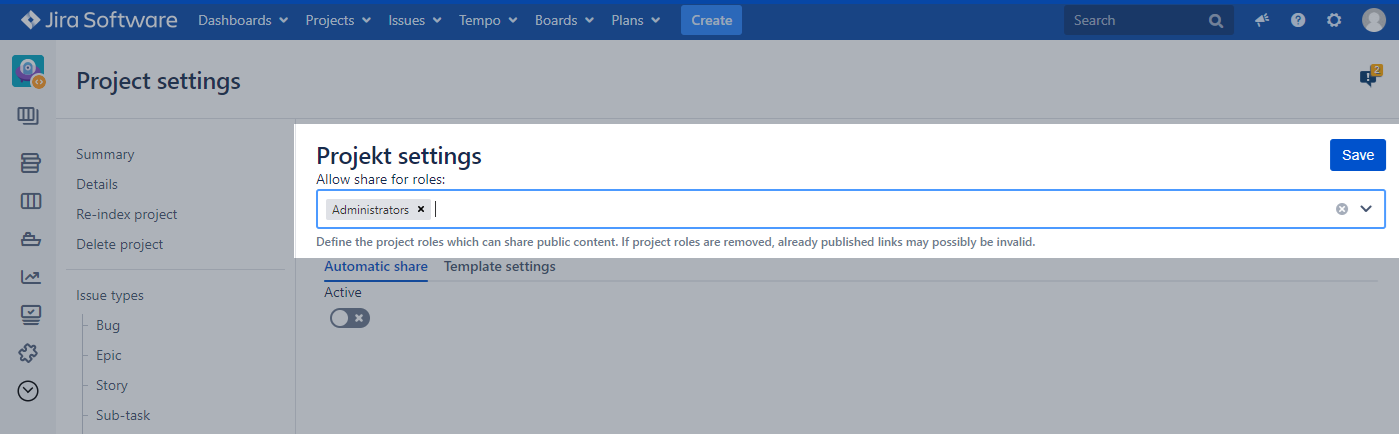
Choose a role to allow it to share |
|
|
Click on "Save" |
Customize project-wide template settings
|
Instruction |
Screenshot |
|---|---|
|
Open the project |
|
|
Click on "Project administration" |
|
|
Click on "Share your Jira" |
|
|
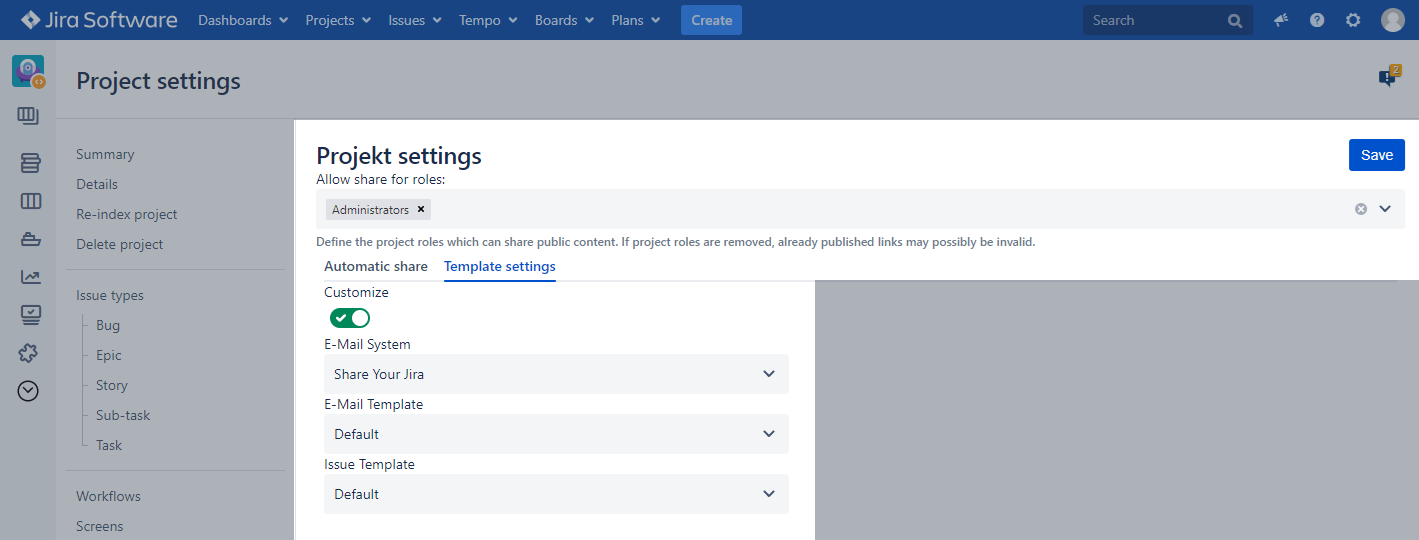
Choose "Template settings" |
|
|
Activate the "Customize" toggle |
|
|
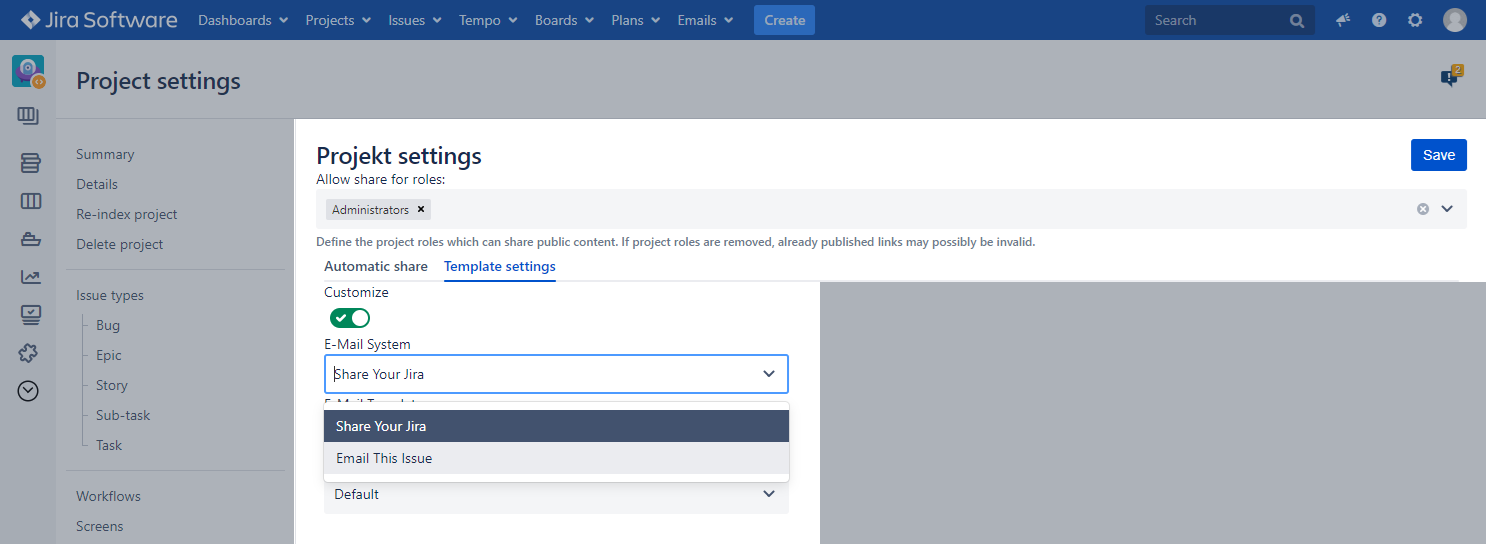
Choose to use either "Share Your Jira" or "Email This Issue" as the e-mail system |
|
|
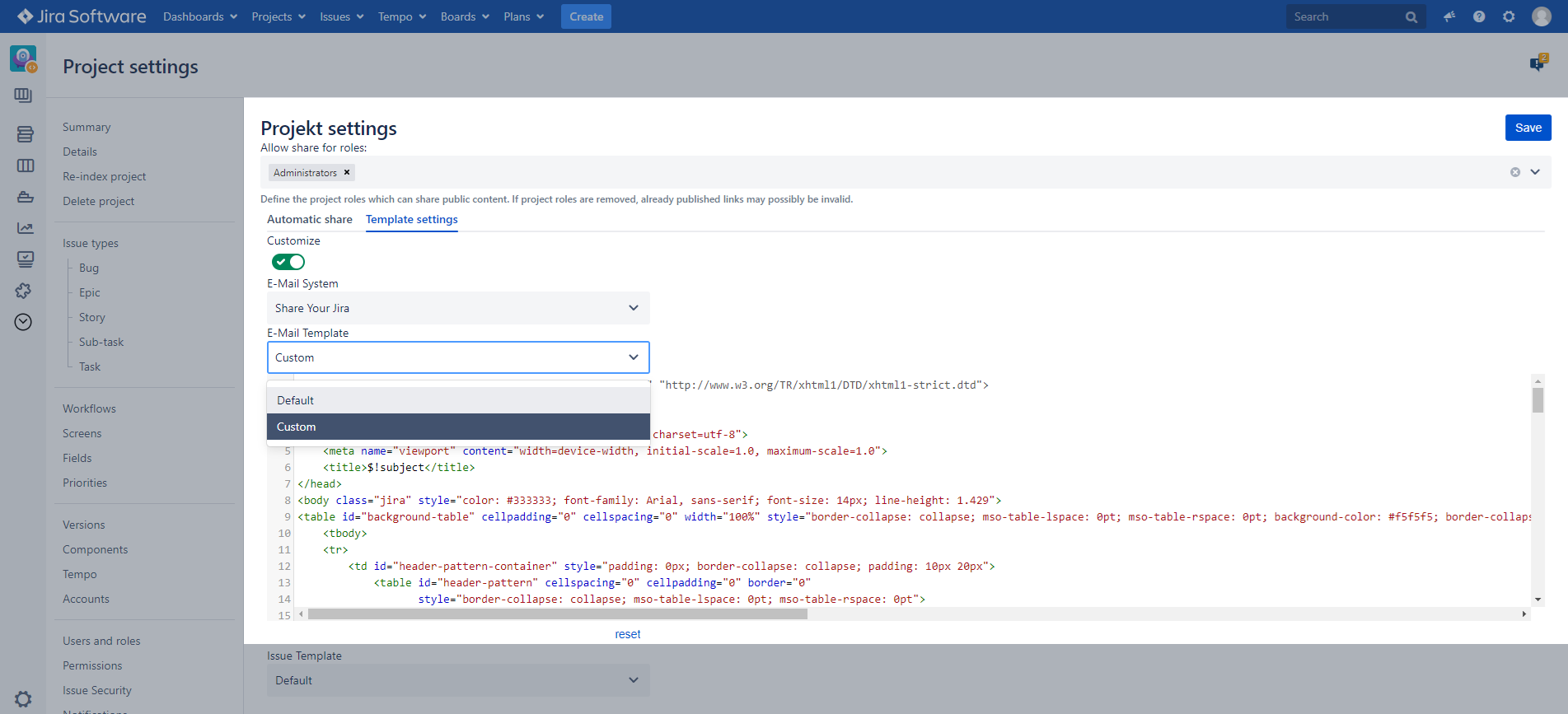
Choose to use either the default or a custom e-mail template |
|
|
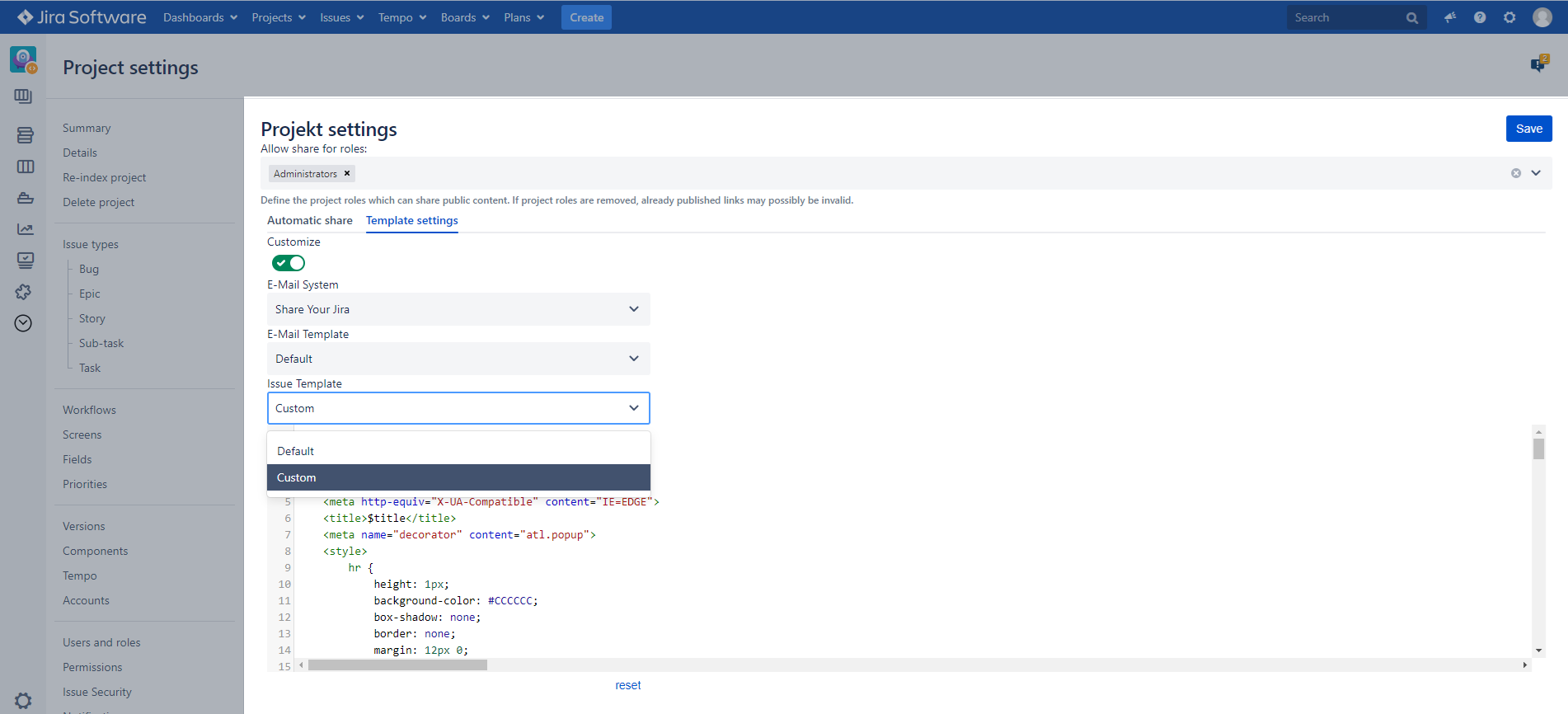
Choose to use either the defaut or a custom issue template |
|
|
Click on "Save" |
Set up automatic shares
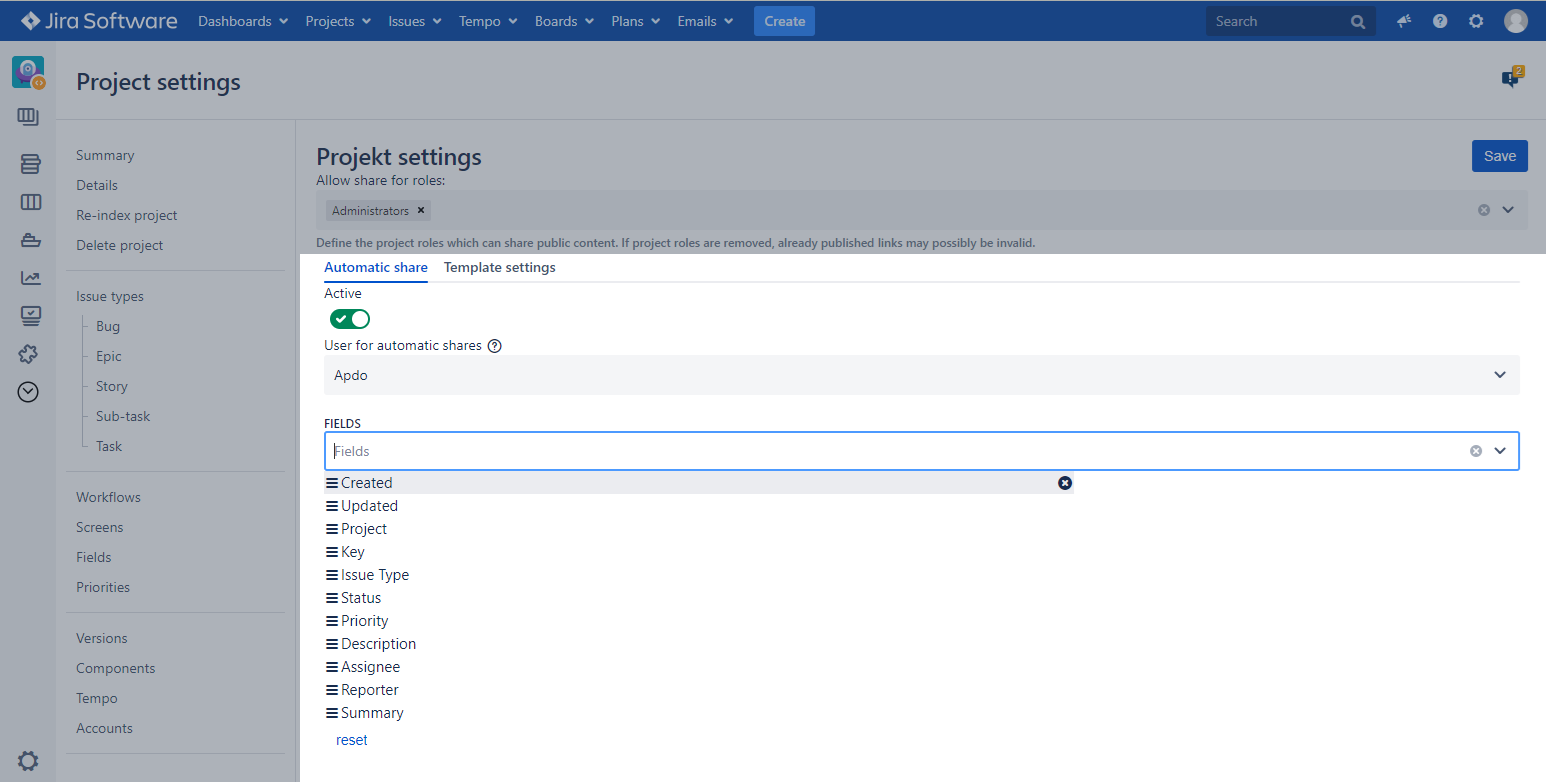
Automatic shares provide a custom field with a link, which contains the shareable view of an issue.
|
Instruction |
Screenshot |
|---|---|
|
Open the project |
|
|
Click on "Project administration" |
|
|
Click on "Share your Jira" |
|
|
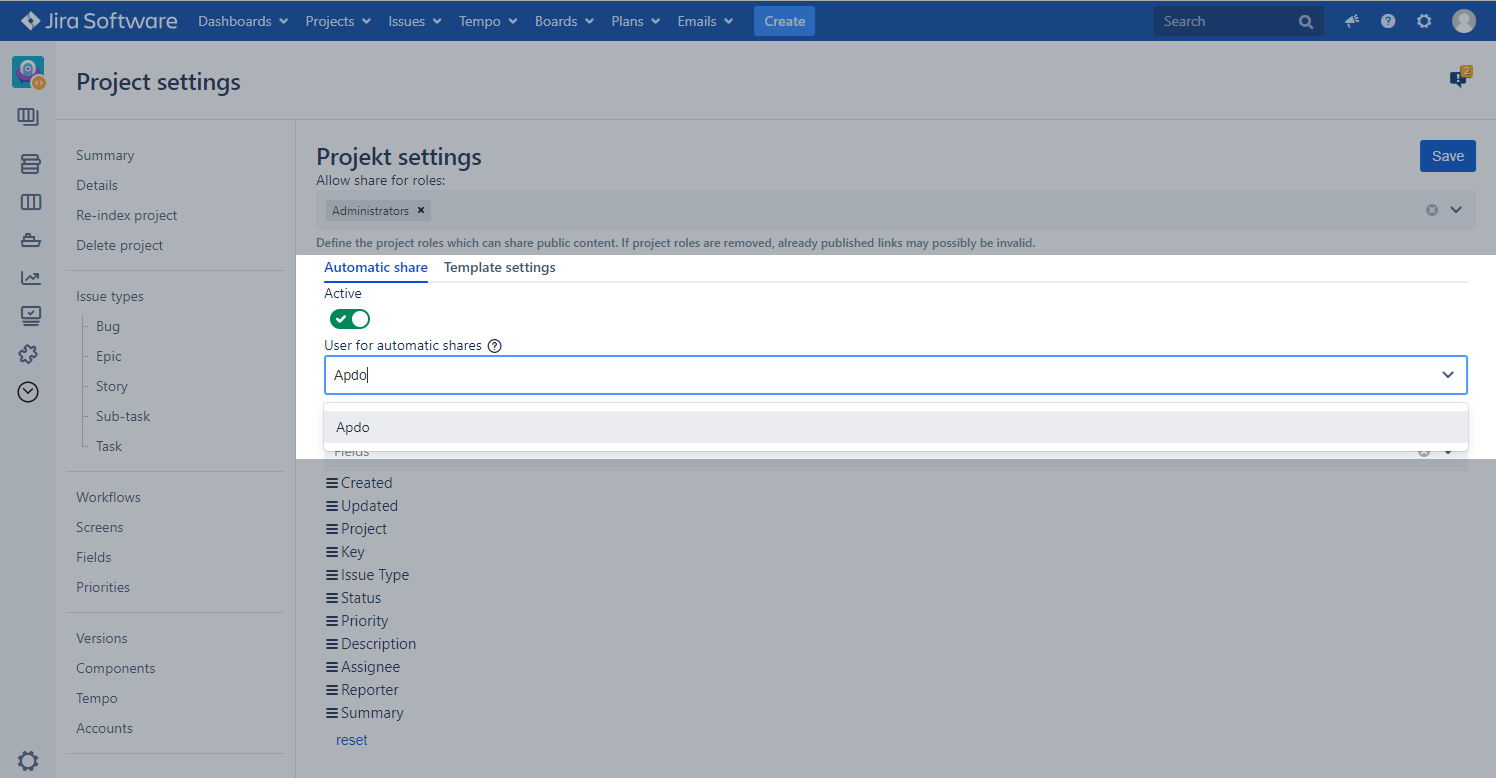
Choose "Automatic share" |
|
|
Activate the "Active" toggle |
|
|
Define a user for auto shares |
|
|
Define which fields the auto shares display |
|
|
Change the order of the fields via drag and drop |
|
|
Click on "Save" |
|
|
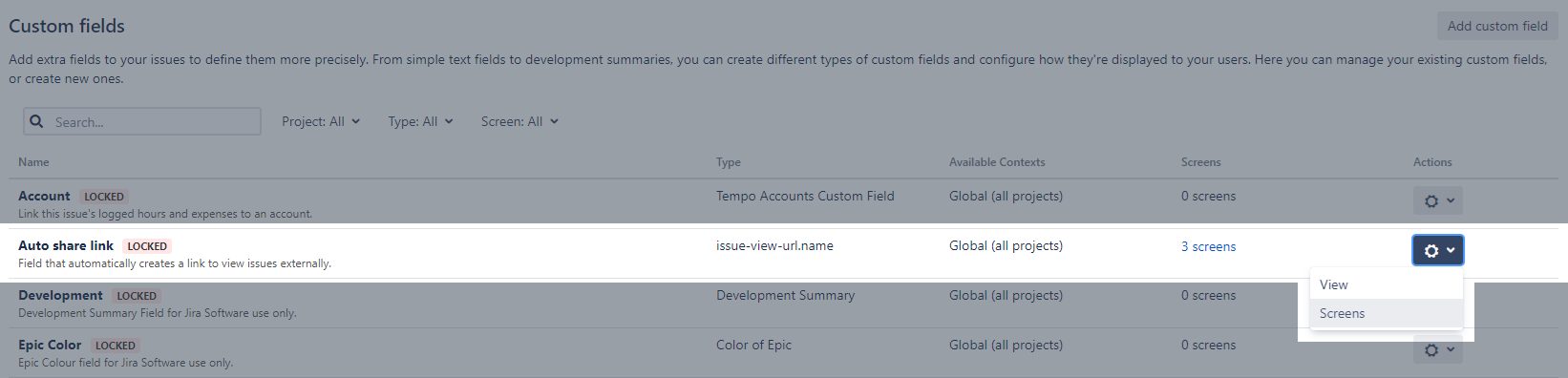
Navigate to the custom field settings |
|
|
Assign the auto share link field to the required screens |
Firing Events
Share Your JIRA allows you to catch the activity of all public shares by firing an event. This means it is possible to define e. g. supervisors to get notified in a custom way if a public share is created.
The relevant event is called "Issue Public Shared".
By using Scriptrunner for example, you are able to trigger an custom email.
|
Event Name |
Description |
|---|---|
|
Issue Public Shared |
Fires, when an issue is shared by the user via Share Your JIRA. |